Word Document to Presentation: A Worked DOCX Example
To turn a Word document into a presentation in SlidesMate, upload a DOCX in the source flow, review the extracted text, choose a slide count and generate a draft. Then compare the slides with the document before presenting. The input is text extracted from the file; Word page layout does not become slide layout.
This walkthrough uses a small fictional operations brief so you can inspect the source yourself. We ran the actual DOCX extraction, source-based AI generation and save flow on a local SlidesMate build, then exported the five-slide draft through the editor. We also kept a separate manually authored interpretation. Both use fictional inputs; the generated draft and manual example are labeled separately. These samples do not establish production billing or PowerPoint desktop compatibility.
For supported inputs and the broader workflow, see document to presentation. To try your own file, open the source creation flow.
Prepare a document that contains the decision
Our Project Willow Word document contains a title, a fictional-data notice and four short sections: decision requested, budget and measurement, delivery plan, and risks and approval. All names, amounts and dates are invented. It is a training brief, not a customer story.
The decision is to approve a 60-day inventory pilot at eight stores, with a proposed budget ceiling of $48,000. Jordan Vale owns the pilot; the COO and finance lead are asked to approve it by November 20, 2026. The document explicitly says that no improvement has been measured.
Those details give the presentation something concrete to communicate. Before uploading a real report, put the audience, decision, owner, dates and units into the text. A chart caption that says “Revenue” is less useful than a sentence explaining the period, currency and source. If a number is an estimate, write that beside the number. Avoid relying on color or page position to distinguish a forecast from a result.
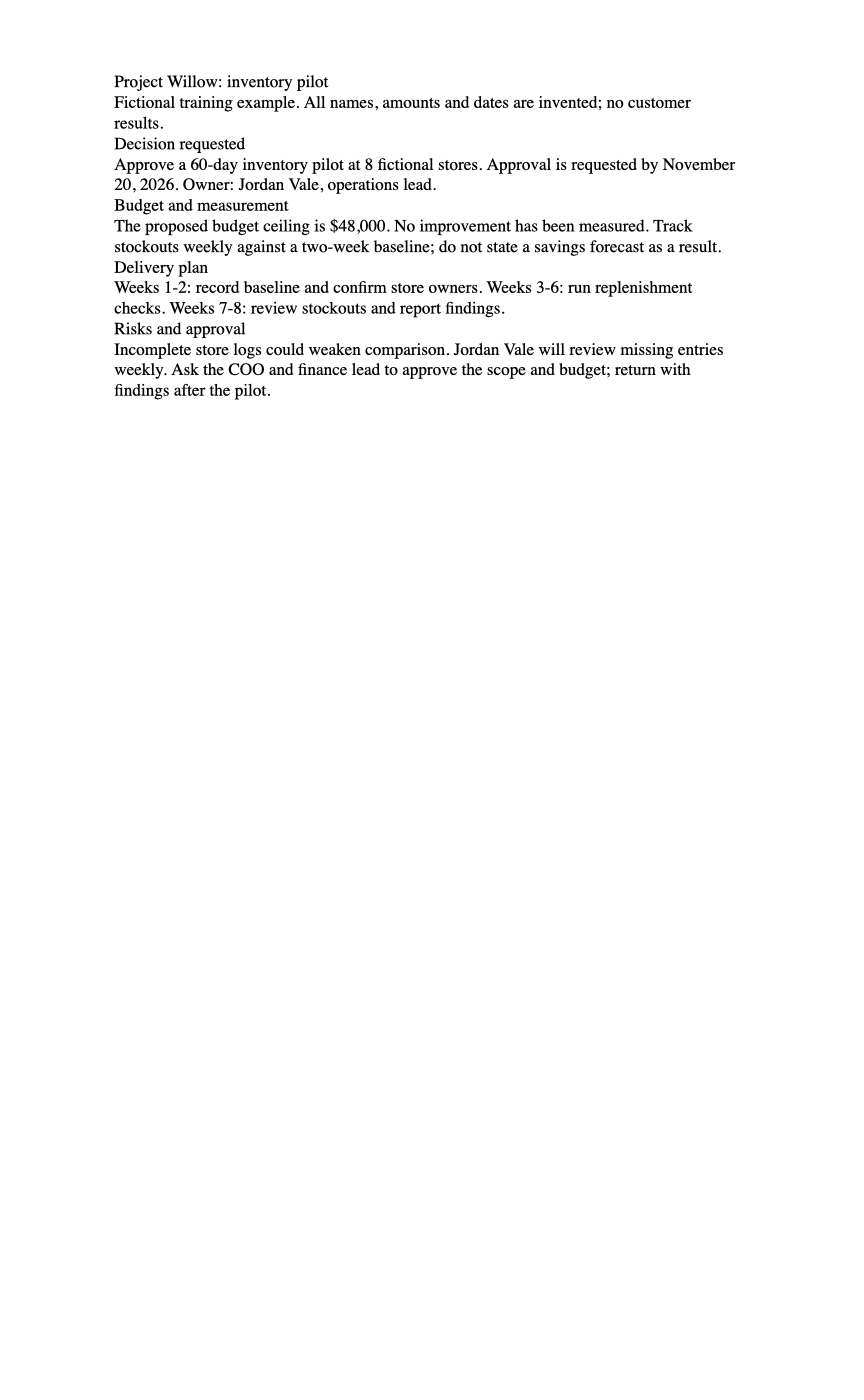
This is a macOS Quick Look preview of the actual DOCX, not a Microsoft Word screenshot.
Review what extraction actually retained
The source file is 1,860 bytes. Running SlidesMate's extractTextFromFile on it returned 849 characters. The complete extracted text is available beside the source. It retains the section words and paragraph content, including the budget qualification and the absence of measured improvement. It does not retain the Word heading styles as slide instructions.
SlidesMate's DOCX path uses Mammoth's raw-text extraction. Mammoth's documentation explains that raw-text extraction ignores formatting. This matters when your document uses formatting to carry meaning: a highlighted warning, a complex table or an embedded diagram needs its message expressed in text and reviewed after extraction. Do not assume that an embedded image has been read or its text recognized.
Current file extraction accepts DOCX, PDF, TXT and Markdown files up to 10 MB. It limits extracted content to 50,000 characters, while the generation prompt currently uses only the first 30,000 source characters. A file passing the size check does not mean its entire contents reach generation. For a long report, create a shorter brief that includes the essential facts, definitions and caveats near the start. Keep the original report as the reference for review.
Generate from the reviewed source
In the signed-in source flow, choose Upload file and select the DOCX. Wait for extraction, inspect the displayed content, choose the slide count and select Generate Slides. The current source flow sends that extracted text to the presentation generator and saves a successful result into the editor.
The source text helps ground the draft, but it does not replace fact checking. Compare every date, amount, named owner and requested action with the document. Treat any new causal explanation, forecast or recommendation as something to verify. A plausible sentence can still change the meaning of a brief.
For Willow, “the pilot saved $48,000” would be wrong: $48,000 is a proposed spending ceiling, and there are no measured results. Likewise, “roll out across all stores” would expand the eight-store scope. These are useful review questions even when a draft looks polished.
Inspect the actual generated draft
On November 4, 2026, we sent this DOCX through the local app's extractFromFile, generateRichPresentation and save calls—the same operations used by the source flow—with five slides, general audience, professional tone, English and the Monochrome News theme. The extraction returned 849 source characters. The exact generation input and untouched generated output are available for inspection. This is one local run with configured AI services, not a benchmark or customer result.

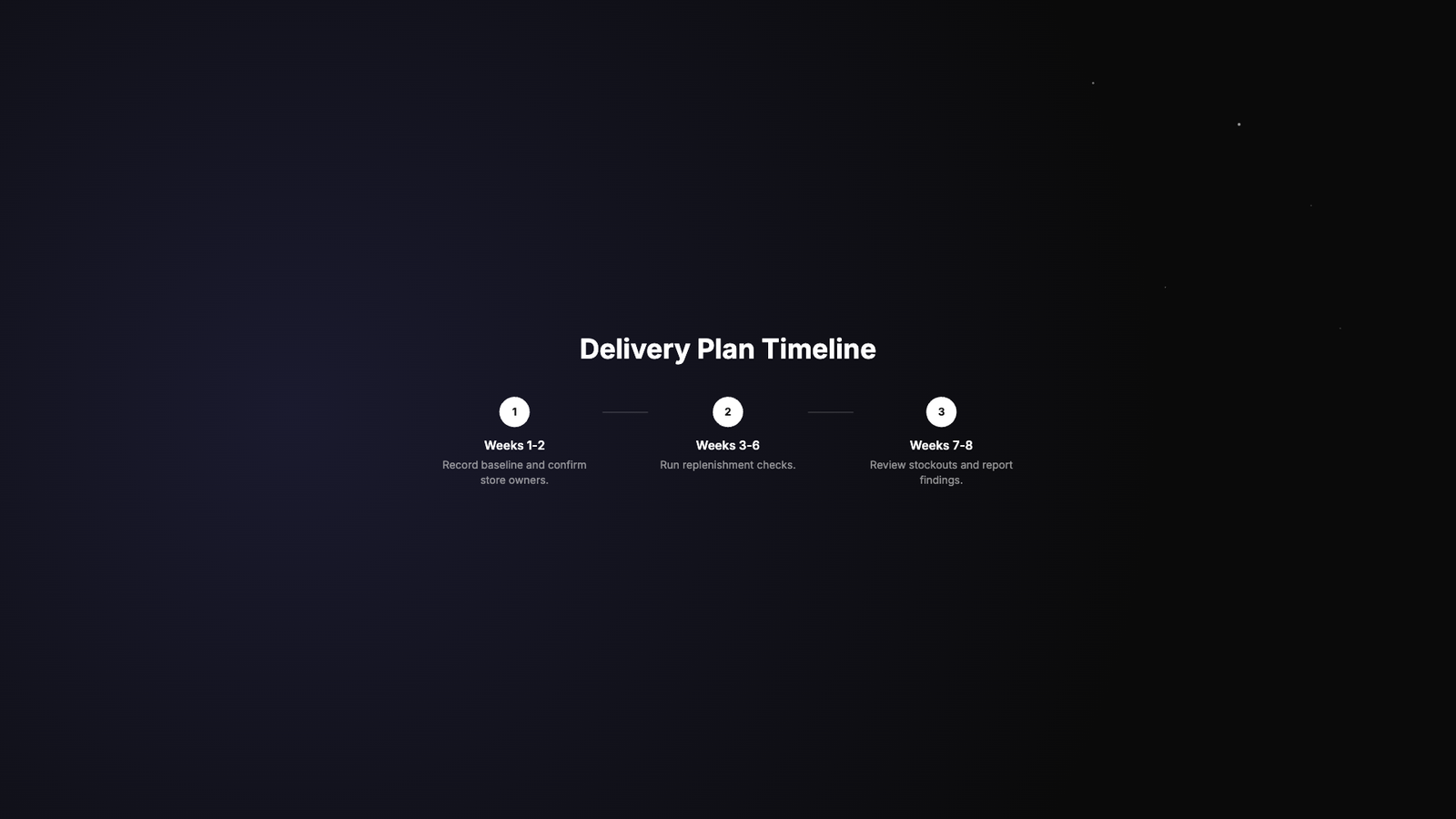
| Source detail | What the generated draft did | What to review before sending |
|---|---|---|
| Proposed $48,000 spending ceiling | Kept $48,000 and labeled it Budget Ceiling | Confirm it remains a proposal rather than an approved budget |
| 60-day pilot at eight fictional stores | Kept the duration and store count | Retain the fictional-example disclosure when sharing this sample |
| Weeks 1–2, 3–6 and 7–8 plan | Preserved the three stages | Check whether the plan's eight weeks fully cover your intended 60 days |
| No improvement has been measured; compare weekly stockouts with a two-week baseline | Omitted the explicit no-results statement and the weekly stockout metric from the visible slides | Restore both before treating this as a complete decision brief |
| COO and finance lead should approve | Kept an approval request but did not name both approvers | Add the decision owners back to the closing slide |
The generator also chose an illustrative stock warehouse photograph, credited in the exported cover. It is not a photograph of the fictional stores. We left the draft content untouched so the omissions are visible; visual polish does not mean the source has been fully represented.
- Download the actual generated editable PPTX
- Download the generated draft PDF
- Read the local generation record
The public files are teaching samples. Exporting your own deck follows the current plan rules.
Compare the source with the manual slide interpretation
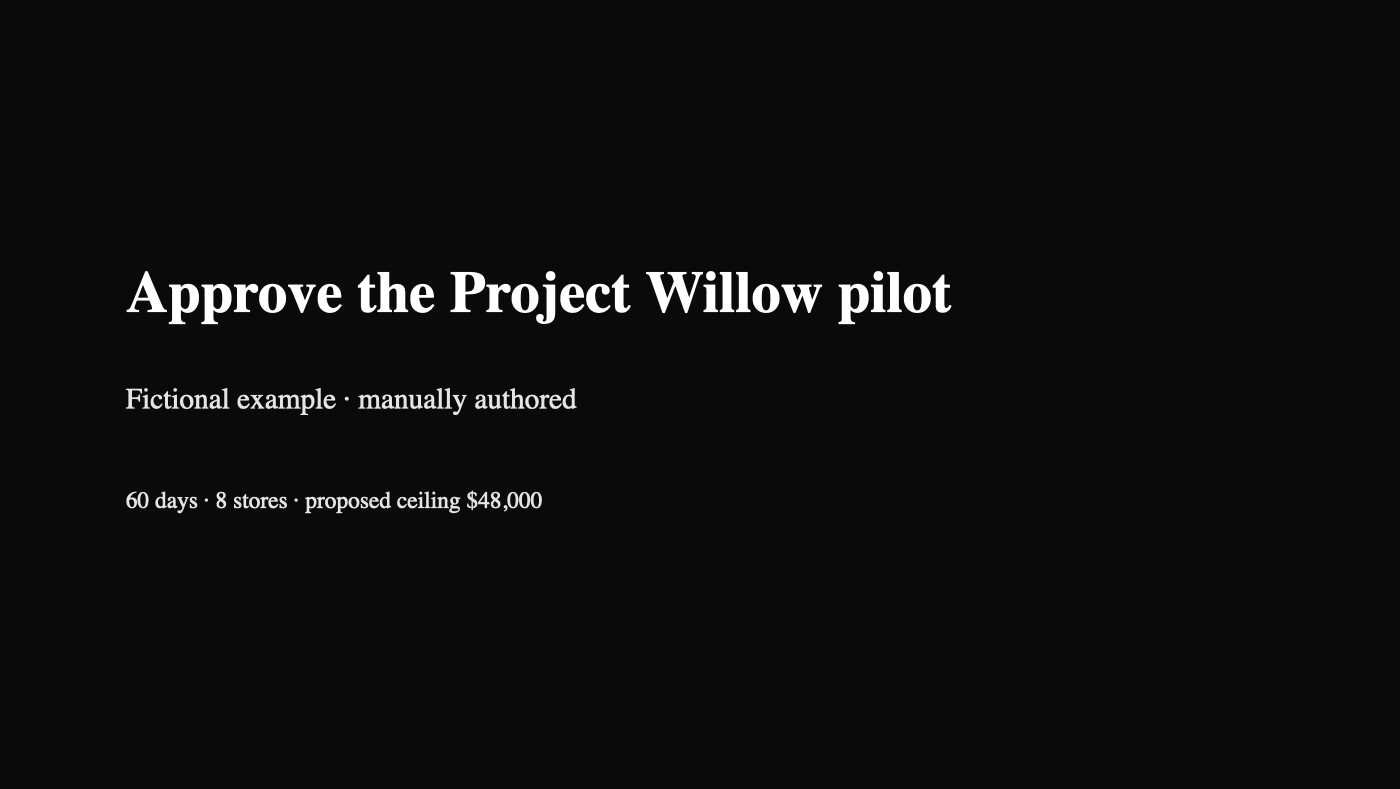
The five-slide PowerPoint example uses editable native slide elements exported by SlidesMate's PowerPoint exporter. Its slide JSON records the manual provenance and slide content. The preview below is a Quick Look rendering of that actual PPTX cover. We have not tested this file in Microsoft PowerPoint desktop.
| Source detail | Manual slide treatment | Review question |
|---|---|---|
| 60 days, eight stores, proposed $48,000 ceiling | Opening slide states all three together. | Are duration, scope and budget still qualified correctly? |
| Approval date and named owner | Decision slide names Jordan Vale and November 20, 2026. | Did compression remove accountability or timing? |
| No improvement measured | Measurement slide explicitly preserves that statement. | Has a proposed benefit become a claimed result? |
| Three delivery phases | Plan slide retains weeks 1–2, 3–6 and 7–8. | Do phase labels still match the source? |
| Incomplete logs could weaken comparison | Closing slide pairs this risk with weekly review. | Is the caveat visible before approval? |
This arrangement changes the reading order into a decision-first story. It preserves the source's distinction between a proposed pilot and observed results. The 60-day duration and eight-week phase labels are both supplied by the fictional brief; a real reviewer should reconcile their exact calendar dates before scheduling the work.
Choose an outline import when you need a literal structure
If your goal is to turn headings into slide titles with minimal rewriting, Microsoft's outline workflow is another option. Its PowerPoint outline instructions describe using Word Heading 1 for slide titles and Heading 2 for slide text. That is a different task from asking AI to reorganize a report into a presentation.
Older tutorials may send you to Word's Export to PowerPoint command. Microsoft's support page now carries a deprecation notice, so do not assume that command is available in your account. These Microsoft workflows are documented alternatives; we did not perform a desktop import test for this article.
Check the handoff before presenting
Open the exported deck in the app your audience will use. Check line wrapping, fonts, slide order, table readability and any notes you intend to share. Keep the DOCX and extracted text available so a reviewer can trace a slide back to the brief.
Choose the export that matches the handoff: a colleague editing slide text has different needs from an audience reading a fixed PDF. See editable versus image-based PowerPoint for those tradeoffs, and export help for current download steps and plan restrictions. The public sample here is a freely downloadable example; it does not change export access on your account.
Start with your own document, or inspect the document workflow before uploading.