SlidesMate vs PowerPoint with Copilot: 2026 Comparison
SlidesMate vs PowerPoint
Comparing SlidesMate with "PowerPoint" is really two comparisons. One is with base PowerPoint, where you build slides yourself. The other is with PowerPoint with Copilot, which Microsoft's support documentation describes as able to create a whole presentation from a prompt or a Word document. Which one you have depends on your Microsoft 365 plan and, at work, on your organization's settings.
SlidesMate publishes this page and makes one of the products compared. Microsoft details come from Microsoft's own pricing and support pages, checked on November 4, 2026. SlidesMate details come from our pricing page, our export code, and one real deck we generated and exported, shown below. This is a documented comparison rather than a timed or scored head-to-head.
Base PowerPoint, PowerPoint with Copilot and SlidesMate
| Base PowerPoint | PowerPoint with Copilot | SlidesMate | |
|---|---|---|---|
| How you start | Blank deck or template | A prompt or Word document in Copilot Chat, with an optional Brand Kit | A prompt, an outline, or an uploaded PDF, DOCX, TXT or Markdown file |
| Where it runs | Desktop (Windows and Mac), web, mobile | PowerPoint for Microsoft 365 on Windows and Mac, and PowerPoint for iPad, per Microsoft's article | Web browser |
| Design control | Desktop: slide masters, animation, Morph, SmartArt and native charts; web features differ | Same as base once the deck exists | Layouts, themes and speaker notes in a web editor. Much less depth than PowerPoint, and no native chart objects |
| Collaboration | Co-authoring through OneDrive or SharePoint. PowerPoint for the web is free | Same | Business plan only |
| File format | Native PPTX | Native PPTX | Paid plans export editable or pixel-perfect PPTX, plus PDF, PNG and HTML. No PPTX import |
| Cost | PowerPoint for the web is free with a Microsoft account. Microsoft 365 Personal is $99.99/year | Personal ($99.99/year), Family ($129.99/year) and Premium ($199.99/year) include Copilot with usage limits. Work accounts need a Copilot license | 7-day trial, then Plus $8/month or $79/year, Pro $16/month or $149/year, Business $30/month or $299/year |
Microsoft prices are from the Microsoft 365 plan comparison and the Copilot for business page, as of November 2026. Microsoft's footnotes say AI features are not in Microsoft 365 Basic, are available only to the subscription owner and cannot be shared, and are subject to usage limits.
What Copilot in PowerPoint does now
Microsoft's support article, Create a new presentation with Copilot in PowerPoint (updated October 2026), describes this flow:
- Start a new presentation and open Copilot Chat. You can pick an AI model or leave it on Auto.
- Optionally select a Brand Kit. Some organizations require one.
- Describe the deck. Copilot may ask about audience, length, template and imagery, or decide for you.
- Copilot builds the deck from your selected template and applies the Brand Kit if you chose one.
You can also build a presentation from a Word document. Microsoft says this works best with files under 24 MB that use Word heading styles. The article notes that Copilot "might not be included with your Microsoft 365 subscription" and can depend on your organization's settings.
For business accounts, Microsoft's Copilot Business pricing lists the add-on at $21 per user per month paid yearly, with an $18 promotional price displayed when checked. An eligible Microsoft 365 subscription is required separately. Compare the annual commitment and your existing license before treating this as the total cost; promotions and regional offers can change.
Where PowerPoint is stronger
- Depth. Slide masters, animation, Morph, native Excel-linked charts, SmartArt and accessibility checking go far beyond SlidesMate's editor.
- Native file. A deck created in PowerPoint needs no conversion into PPTX. Native text, shapes and charts remain available for editing; a screenshot or flattened image still has no editable text inside it.
- Offline and desktop delivery. Desktop apps work without a browser. SlidesMate is a web app, so offline presenting means exporting a file first.
- Collaboration. Co-authoring is part of Microsoft 365, and PowerPoint for the web is free. SlidesMate only offers real-time collaboration on Business.
- AI inside the tool you already use. If your plan includes Copilot, you get deck generation without adding another subscription.
Where SlidesMate may fit
- You have PowerPoint but not Copilot. Examples include PowerPoint for the web on a free account, Microsoft 365 Basic, or a work account without a Copilot license. SlidesMate Plus costs $8 a month or $79 a year.
- You want a separate drafting step. SlidesMate generates a draft from a brief or source document in the create flow. You edit it in a focused web editor and export to PowerPoint for final polish. Some teams prefer to keep drafting separate from the master file. That is a workflow preference, not a measured advantage.
- You need a file that looks identical everywhere. SlidesMate's pixel-perfect export places an image of each slide in the PPTX, so the exported slide artwork preserves its fonts and effects. Individual text and shapes cannot be edited, and image-only slides need separate accessibility work.
One SlidesMate deck, exported to PowerPoint
To show what the PowerPoint export actually contains, we ran the six-slide "Project Orion" decision brief from our homepage once through SlidesMate's create flow on November 3, 2026. Project Orion and its numbers are fictional. The run used a local build of the current product on the trial plan and spent 10 AI credits. We then made six small wording edits in the editor (for example, turning "Executive Summary" into "Approve Project Orion's Q4 rollout") and exported the deck with the paid PowerPoint (Editable) export. No Copilot deck was generated for this page.
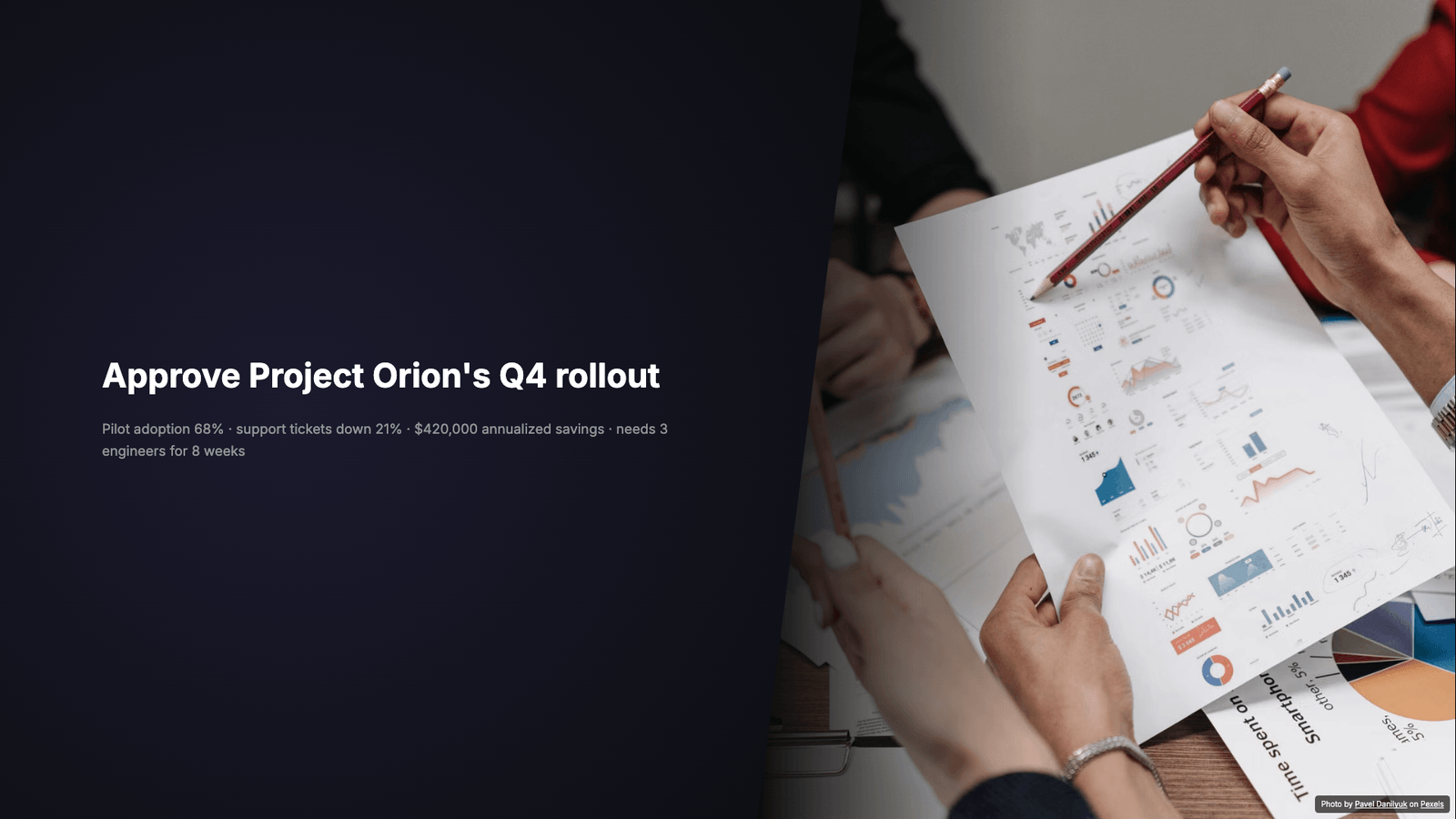
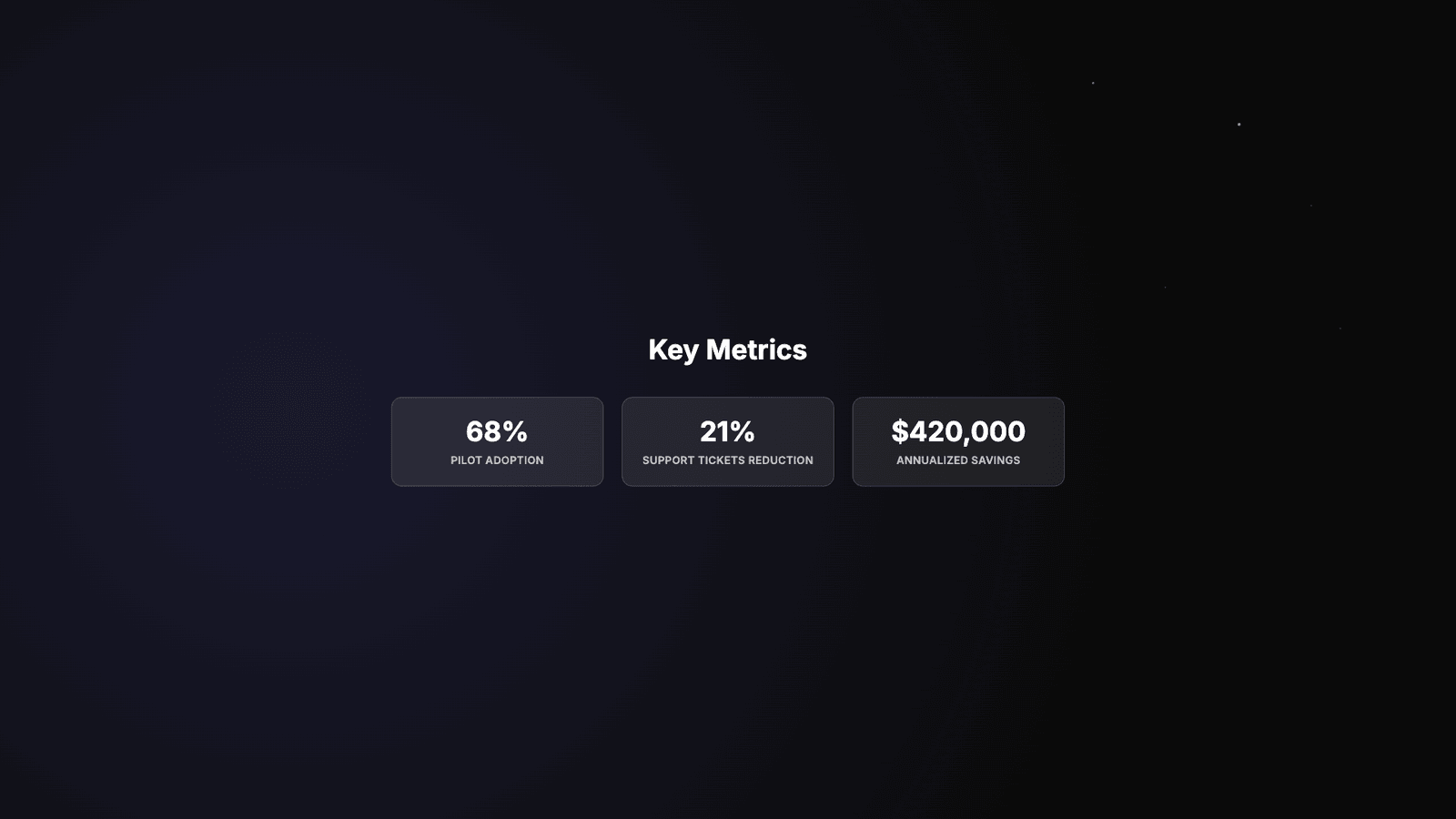
These images are SlidesMate's own renders of the edited deck. Download the editable PowerPoint file to inspect it yourself.
We checked the exported file by reading its contents (the XML inside the PPTX) rather than by opening it in PowerPoint desktop. What it contains:
- Six 16:9 widescreen slides. Every title, bullet and stat value is a native, editable text box.
- Stat cards as shapes. The three metric cards are rounded-rectangle shapes with separate text boxes for the value and label, not a picture.
- Speaker notes on all six slides.
- The cover photo embedded as a JPEG, from the stock library SlidesMate used to choose it.
- A solid background. The theme's dark gradient became a single solid color.
- Fonts referenced, not embedded. Text is set in Inter, but no font files are inside the PPTX. On a computer without Inter, PowerPoint substitutes another font.
- Real slide titles and image descriptions. Each title sits in PowerPoint's title placeholder, the cover photo carries its stock-library description as alt text, and the file records the deck title and an English language tag.
What stays editable when SlidesMate exports to PowerPoint
Beyond that one deck, here is what SlidesMate's export code does with each element:
| Element | PowerPoint (Editable) export | PowerPoint (Pixel-perfect) export |
|---|---|---|
| Titles, body text and bullets | Native, editable text boxes | Part of a flat slide image |
| Tables | Native PowerPoint tables. Long tables continue onto extra slides | Image |
| Stat cards, timelines, comparison cards | Native shapes with text boxes. Up to 5 stats, 4 comparison cards and 6 timeline or team entries per slide are exported | Image |
| Speaker notes | Included | Not included |
| Gradient backgrounds | Converted to a solid theme color | Kept as they appear |
| Fonts | Referenced by name, not embedded. Install them locally | Kept as they appear |
| Images | Built-in stock images (Pexels, Unsplash) and embedded PNG or JPEG images are included. Images hosted elsewhere are left out | Kept as they appear |
| Layout variants and theme decorations | Each layout is rebuilt in one standard arrangement, so some slides look simpler than in the editor | Kept as they appear |
| Slide master | No master built from your theme. Colors and fonts are set on each object | Not applicable |
| Charts | SlidesMate has no chart object, so numbers arrive as text, shapes or tables | Not applicable |
The pixel-perfect export stores one 1920×1080 image per slide. Both PowerPoint exports require a paid plan, and the 7-day trial exports only a watermarked PDF. SlidesMate cannot import PowerPoint files, so edits you make in PowerPoint do not sync back.
How to hand a SlidesMate draft to a PowerPoint editor
Use PowerPoint (Editable) when a colleague needs to change wording, move objects or revise figures. Use PowerPoint (Pixel-perfect) when preserving the slide artwork matters more than editing its elements. A paid SlidesMate plan is required for either file.
- Review the generated draft in SlidesMate against your source material. Correct claims and add speaker notes before exporting.
- Export the editable PPTX and open it in the PowerPoint version your recipient will use. Install the referenced fonts where available, or choose replacements and check line wraps.
- Compare content as well as appearance with the SlidesMate render. The exporter rebuilds layouts, so a visually similar slide is not proof that every body field survived. Our current Orion file contains the rollout resource requirement and closing approval request as native text. Check your own exported file rather than assuming another layout will preserve every field.
- Apply your organization's slide master and recreate any required native charts, animation or linked Excel objects in PowerPoint. Those are not supplied by SlidesMate's export.
- Keep the edited PPTX as the final working file. SlidesMate has no PPTX import, so importing your changes back is not an available workflow.
These steps describe the file handoff and its checks; the published Orion evidence is an XML inspection, not a PowerPoint desktop rendering test. If you must preserve a complex existing PowerPoint deck or continuously edit the same file across tools, use PowerPoint directly.
Which to choose
If your Microsoft 365 plan already includes Copilot, start there. You avoid a second tool and a file conversion, and the deck is native PowerPoint from the first slide. SlidesMate is worth trying when Copilot is not available to you, or when you want a low-cost drafting tool that hands PowerPoint a file you can keep editing, with the trade-offs listed above.
FAQ
Can Copilot in PowerPoint create a full presentation?
Yes. Microsoft's support article describes creating a new presentation from a prompt or from a Word document. Availability depends on your subscription and, at work, on your organization's settings.
Can I import a PowerPoint file into SlidesMate?
No. SlidesMate accepts PDF, Word (DOCX), text and Markdown files as source material for a new draft, but it does not import or round-trip PPTX files.
Does SlidesMate's PPTX export keep everything editable?
The editable export keeps text, shapes, tables and speaker notes as native objects. Gradients become solid colors, fonts are not embedded and images from outside the built-in stock sources are left out, so review the file before sending it. The pixel-perfect export keeps the look but not editability.
Is SlidesMate free?
SlidesMate has a 7-day free trial with up to 5 presentations and 100 AI credits, and no card is required. The trial exports a watermarked PDF. PowerPoint export requires a paid plan. See pricing.
For when to use AI drafting at all, read AI vs manual presentation design. For switching away from PowerPoint entirely, see PowerPoint alternatives. Other matchups: SlidesMate vs Google Slides and SlidesMate vs Gamma.
To create a browser draft for a PowerPoint handoff, see the AI PowerPoint maker. The editable versus image-based PowerPoint guide shows the file-level tradeoffs.
Related Articles
SlidesMate vs Google Slides with Gemini: 2026 Comparison
SlidesMate vs Google Slides as of November 2026: Gemini deck generation and plan eligibility, free access, collaboration, PPTX export and pricing.
SlidesMate vs Beautiful.ai: AI Decks, Pricing and Exports
SlidesMate vs Beautiful.ai as of November 2026: AI deck generation, Smart Slides, trials, PowerPoint export, collaboration, templates and pricing.
SlidesMate vs Gamma: Exports, Pricing and Editing Compared
SlidesMate vs Gamma as of November 2026: free plan vs trial, PPTX and PDF exports, credits, collaboration and pricing, with sources for every vendor claim.
SlidesMate vs Canva for Presentations: 2026 Comparison
SlidesMate vs Canva as of November 2026: Canva AI deck generation, AI limits, PPTX export, collaboration and pricing, with sources and honest trade-offs.